How to claim your business in ChatGPT: a step-by-step Business Hub tutorial
 Ojash YadavPublished November 11, 20266 min read
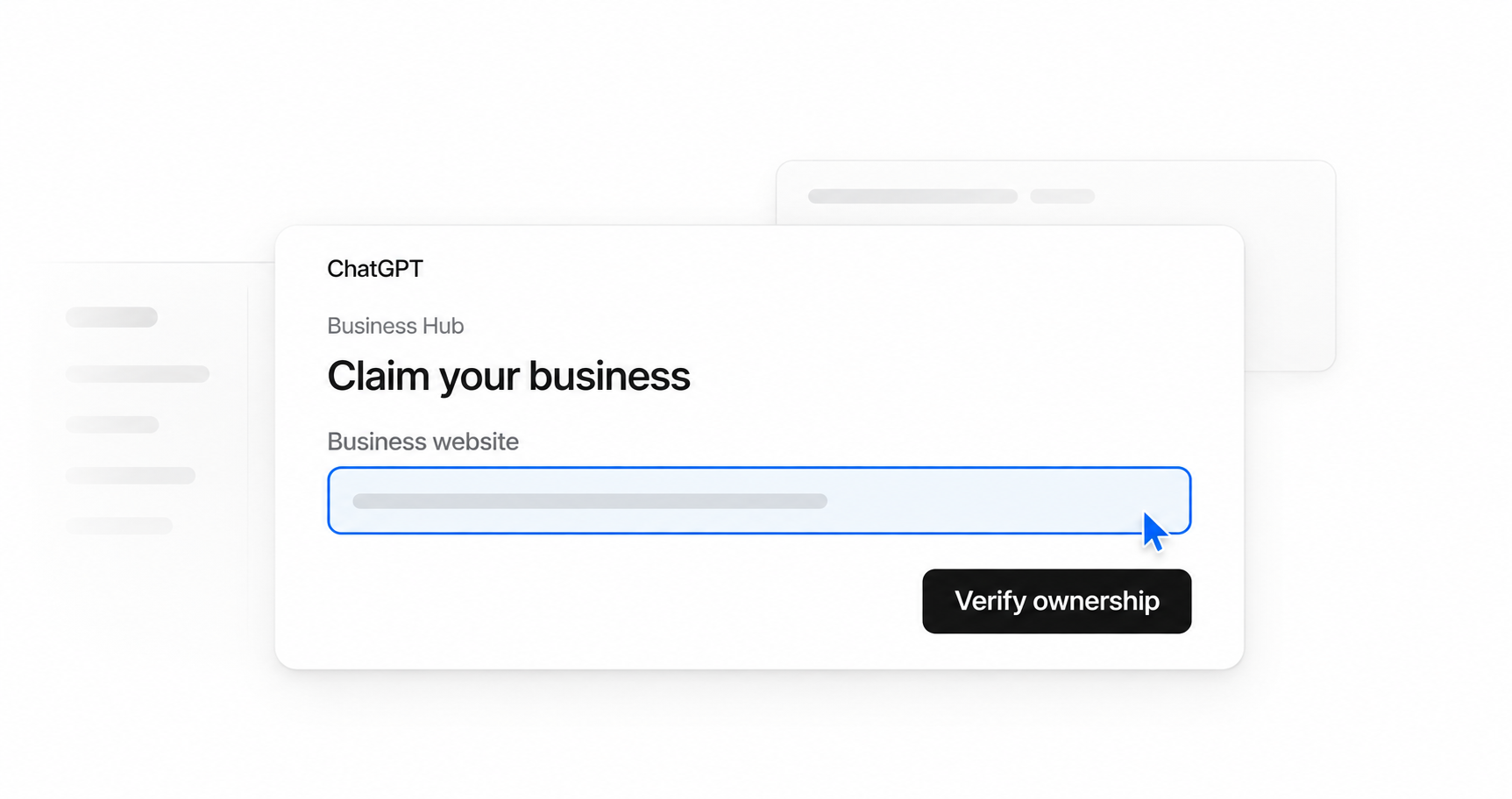
If you work in SEO, you’ve probably wanted a clearer view of how your business appears in ChatGPT. OpenAI’s new Business Hub lets you claim your profile and see mentions and website clicks after verification. I went through the setup. Here’s how it works.
Before you start
Businesses in ChatGPT launched on November 10, 2026. It's separate from ChatGPT Business, the paid workspace subscription.
You must own the business or be authorized to represent it. Have your website, category, description, contact details, and customer policies ready. You'll also need access to your domain's DNS settings if you use the verification method below.
Eligible businesses can claim where ChatGPT is offered. Local stores and restaurants currently need an existing U.S. listing.
I'd have the owner claim the profile, then invite any agency helping manage it. Claiming doesn't guarantee more recommendations or sales, and ChatGPT can still use other sources. See the Business Hub terms.
How to set up your business profile
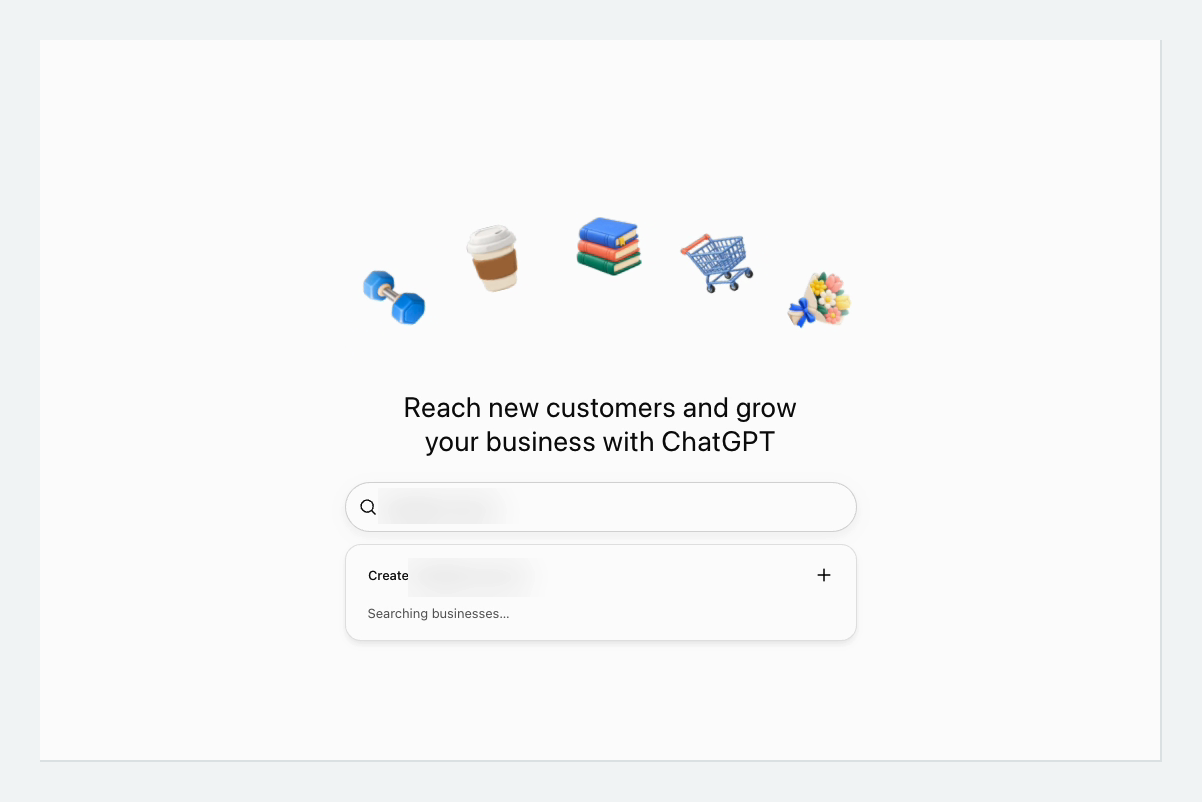
1. Search for your business
Open Business Hub while signed in to ChatGPT. Select your listing, confirm the account, and follow the verification prompts. OpenAI emails its decision.
I didn't find my business, so I chose to create a profile. If yours is already claimed or locked, see the ownership FAQ below.
2. Choose your business type
The choices were a physical location, online store, or service. “Service” said “Coming soon,” and I continued with the online-store option.
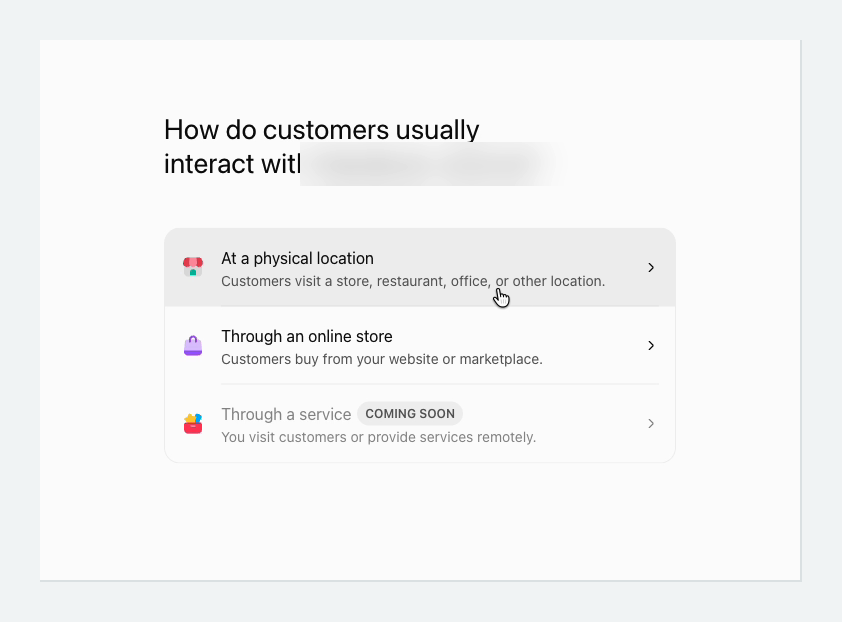
Choose the type that fits your business. A second business I tried reached a waitlist instead.
3. Enter your website address
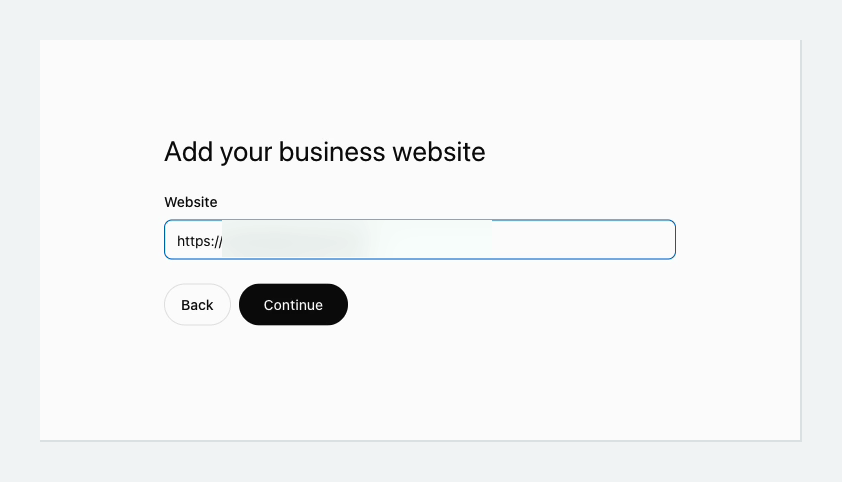
Use the full URL, such as https://example.com. I entered the business name at first and got an error. Adding the full address fixed it.
4. Verify your domain
ChatGPT gave me a DNS TXT record, a text entry that proves you control the website. Copy its type, name or host, and value into your domain's DNS settings. Then return and select Verify domain.
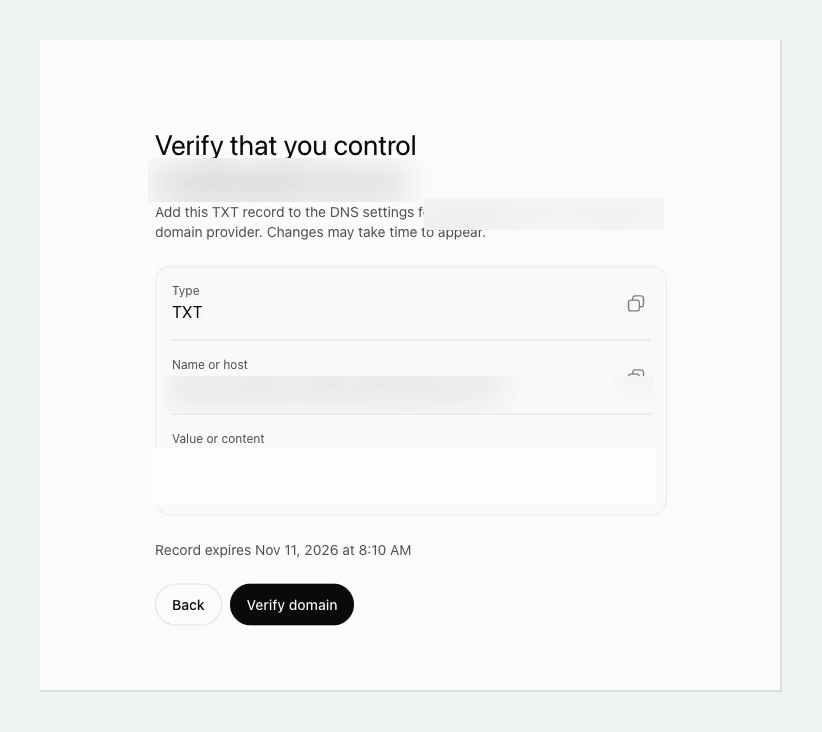
If someone else manages your domain, send them the record. DNS changes may take time to appear. Other listings may offer phone, email, or Shopify verification.
5. Add your business details
Select a category and describe what you offer. Then add your contact details, delivery arrangements, and return policy. Use your actual policies, including any fees and return windows.
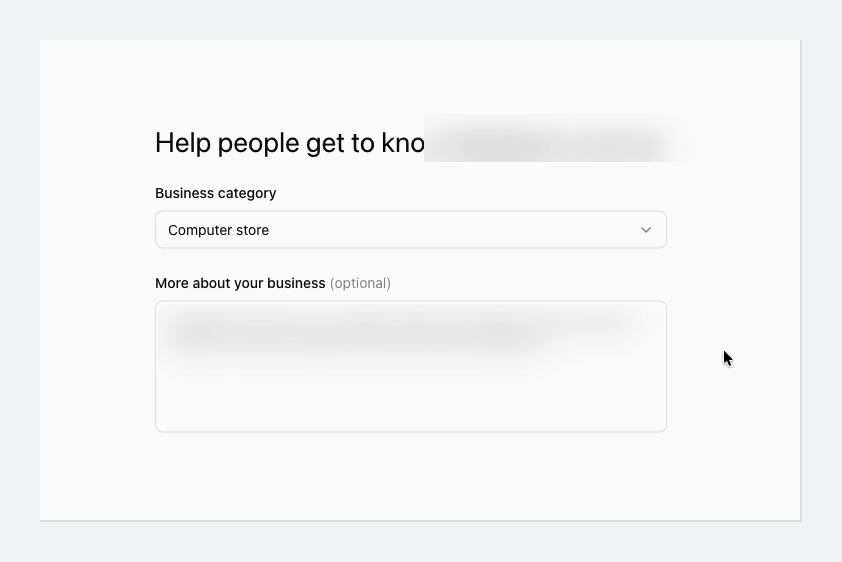
6. Open the business overview
The confirmation said the business was created, but it was still a draft. Click Go to business overview to continue.
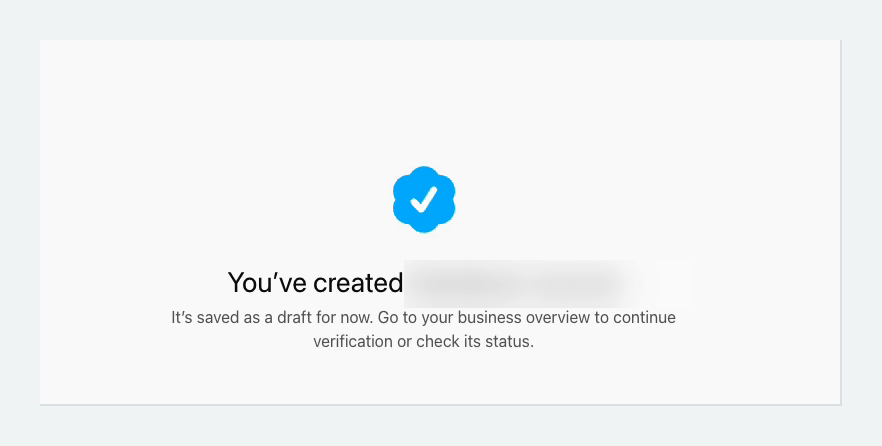
The overview asked me to verify my identity with a government-issued ID.
7. Complete identity verification
Review your details first. New profiles created through Persona publish automatically after approval.
Persona offered me a driver's license, national ID, or passport. I used the option to continue on my phone for document capture.
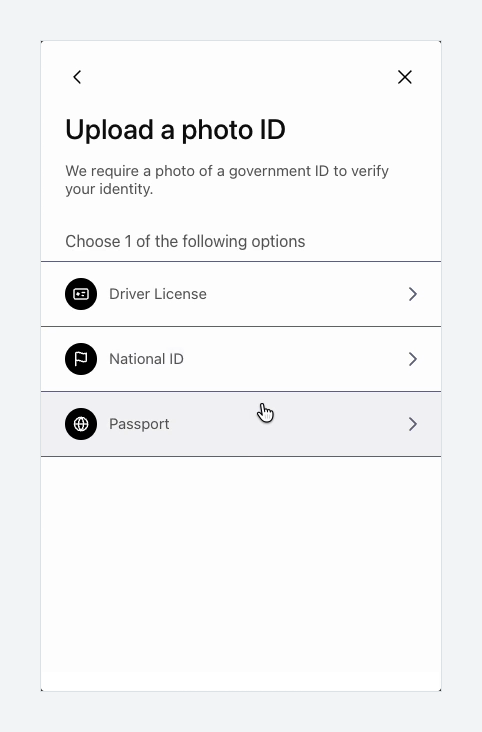
After submitting, I reached Application in review.
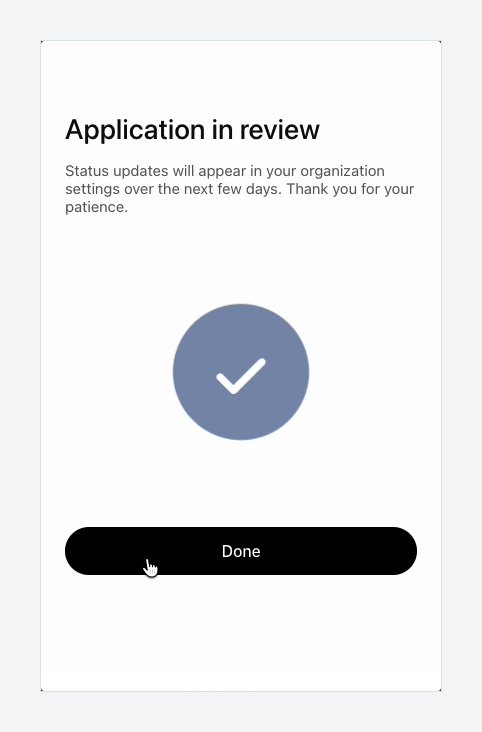
Mine said to expect an update over the next few days. Check your email and Business Hub for the decision, since review times vary.
What if you reach a waitlist?
My second business reached a waitlist after I entered its name and chose a business type. I joined and got this confirmation.
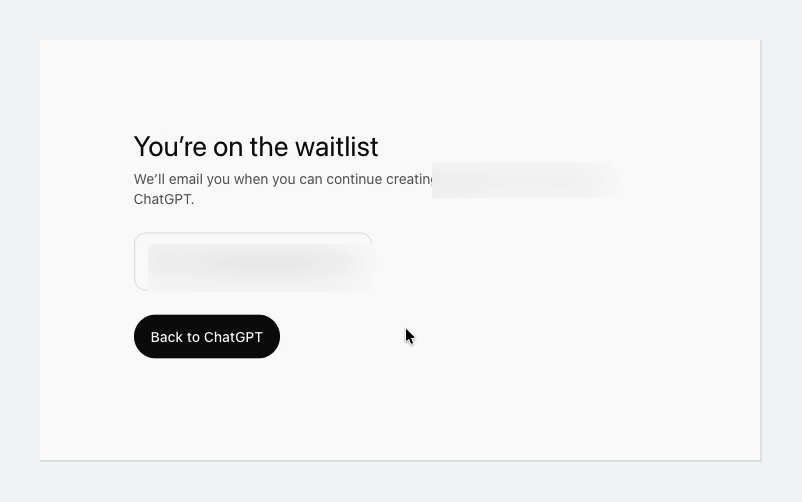
Watch for the email that lets you continue. I don't know why this business was waitlisted, so don't assume changing its type will solve it.
Update your information after approval
Once your claim and Persona verification are approved, open Business and select your profile. Edits are reviewed, so they may take time to appear.
Keep your website and customer policies current too. Updating the profile won't immediately change every answer, especially when ChatGPT cites other sources.
What the Business Hub numbers mean
The dashboard reports mentions, website clicks, and discovery topics. You don't get individual customer conversations.
For online businesses, a mention requires a website reference. Naming your business alone doesn't count. Local mentions count location results.
Website clicks count clicks through to your site. Discovery topics group the themes of answers where your business appeared. Use them to spot questions your website should answer.
A blank metric doesn't necessarily mean zero activity. Reporting depends on minimum activity thresholds.
Check before sharing analytics screenshots: the terms treat insight data as confidential, with restricted access for service providers.
Do you need a Business Agent?
An agent is optional. It can answer questions about products and policies, and retailers can provide product feeds with prices and availability.
At launch, agents are limited to eligible U.S. ecommerce and online service businesses. Verification alone doesn't establish eligibility under the Business Agents Policy.
Agents can't complete purchases, bookings, or order lookups. Customers do those on your website. Test the answers and publish separately when you're ready.
Frequently asked questions
Do I need ChatGPT Business or an advertising account?
No. The workspace upgrade was optional in my setup. Claiming doesn't require an Ads account or Enterprise agreement.
Do I need Shopify?
No. I used domain verification. Shopify merchants can connect through Shopify admin or Business Hub, but still need to review their information and any agent before publishing.
What if someone has already claimed my business?
Select Dispute ownership in the profile menu and complete Persona's checks. Locked listings use Contact support. Don't create a duplicate: the profile policy prohibits it.
Can a colleague or agency manage the profile?
The claiming admin can invite them through Business Hub. Profiles claimed inside a ChatGPT workspace may require invitees to join it. Use their own accounts, not forwarded claim invitations. Contact support if an agency invitation is blocked.
What should I do if verification fails?
Follow the review email, correct details against official records, and retry if offered. If you can't retry, use the Help Center's chat bubble. Include the step, error, account email, and time. Redact screenshots and don't send passwords or one-time codes.
Can I delete the profile?
Only unpublished drafts can be deleted. Setup and ownership requests can't remove published profiles. OpenAI may continue displaying the listing after you stop managing it, so check what will become public before submitting.